
 0
0
In our user area, you can manage your sonible plug-in activations with ease. There is a lot to discover in your Dashboard and we want to show you the ropes.
In case you purchased your sonible plug-in(s) as a guest in our shop or bought it in a shop of a retailer, you can register your plug-in(s) in order to stay on top of your activations. Just type in your license key – make sure to enter the hyphens as well – and click on „register license key“. When you purchase a sonible plug-in in the future in our shop it’ll show automatically in your Dashboard.
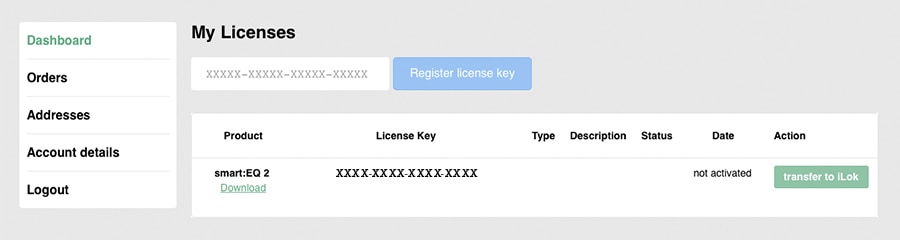
„Not activated“ means that you need to open your DAW of choice, open the plug-in and activate it by entering the license key there – you need an internet connection for this process. The status will synchronize with your Dashboard and it’ll show the date of the activation.
There are two ways to activate your plug-in:
machine-based in your DAW with the license key (sonible licensing system)
optional: in your iLok license manager for iLok Cloud or USB Dongle use. See How do I use sonible plug-ins with iLok?
In total, two simultaneous activations are possible: Either 2 machine-based or 1 machine-based and 1 via iLok.
To create a machine-based activation, open the plug-in in your DAW of choice. If the activation-window doesn’t pop up automatically, go to the settings page and click on “Register now”. Enter the license key to activate the plug-in on your device. Check here for information on how to manage activations.
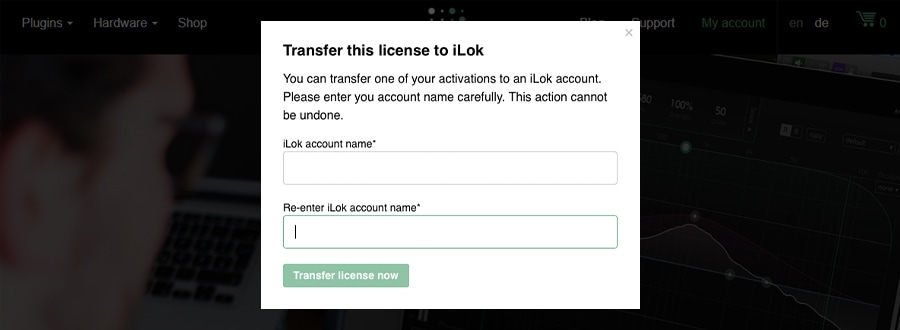 To transfer one activation to iLok Cloud or your iLok Dongle simply click on the respective button in the „Action“ column. Follow the instructions in the pop-up and you are done. Hint: Before using the plug-in, you have to activate it by launching the iLok License Manager.
your sonible plug-in can be active on two devices simultaneously. (active)
up to 5 devices can be registered. (active + pending, check out the graphic below)
one activation can be transferred to iLok
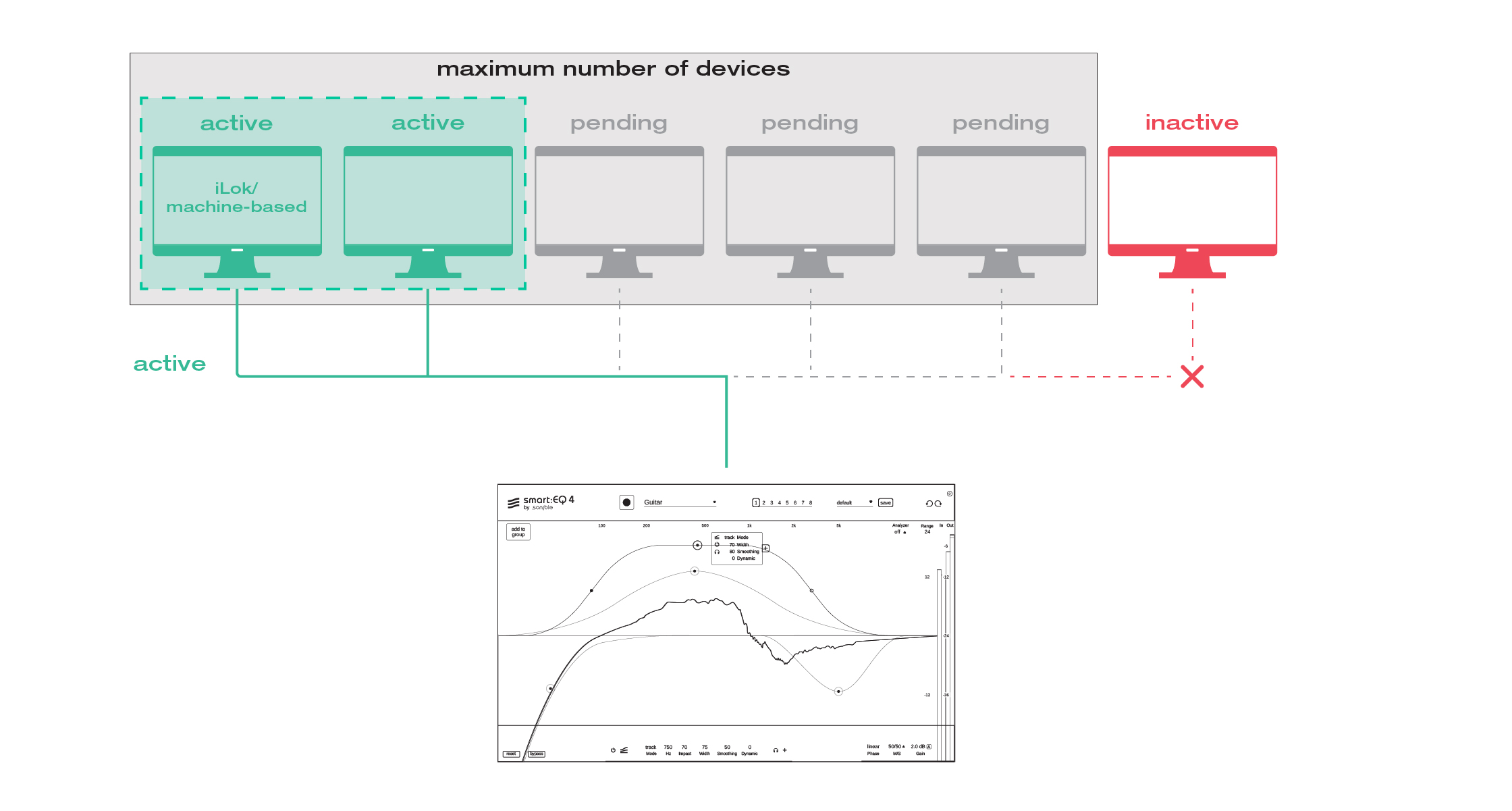
Activate on a new device:
If you haven’t reached the limit of two active activations, no action is necessary in the dashboard. Simply activate the plug-in in your DAW.
If there are already 2 active devices, you need to remove one of them first:
Remove a device:
Press the “revoke” button next to an unused device activation (status will change to pending) and, if possible, open the plug-in on that device once more to complete the process (status will change to inactive).
Re-activate an old device:
If you want to use a plug-in on a device you previously revoked (pending or inactive), press the “re-activate” button. You might be prompted for your license key again, when you open the plug-in for the first time.
iLok (optional):
If you are an iLok user, we grant one iLok transfer. Use the “transfer to iLok” button on your dashboard and read the instructions carefully. Note: you can’t revoke iLok transfers yourself. If you don’t want to use iLok anymore, you need to contact support.